Chroma Key Explained: A Complete Beginner’s Guide
Chroma Key is one of the most powerful techniques in modern video editing, especially for creators who want to replace boring backgrounds, create eye-catching visual effects, or give their videos a cinematic feel. You’ve probably seen it in movies, YouTube videos, or Instagram reels where a person appears in front of a completely different scene. …
Chroma Key is one of the most powerful techniques in modern video editing, especially for creators who want to replace boring backgrounds, create eye-catching visual effects, or give their videos a cinematic feel. You’ve probably seen it in movies, YouTube videos, or Instagram reels where a person appears in front of a completely different scene.
That magic happens through Chroma Key, also known as green screen editing. In simple words, it removes a specific color (usually green or blue) from a video and replaces it with another background using smart color keying tools. With apps like Alight Motion, even mobile creators can use this professional background removal technique easily.
Understanding the Basics of Chroma Keying
At its core, Chroma Key works by detecting a single solid color in your video and making it transparent. Most editors use green or blue screens because these colors are least likely to appear in human skin tones. The chroma key tool analyzes the color range, removes that color, and keeps the foreground subject intact.
Technically, this process is called color keying. The software looks at hue, saturation, and brightness to decide which pixels should disappear. In beginner-friendly tools like Alight Motion, this complex process is simplified into sliders such as color threshold, softness, and edge smoothness. These controls allow you to fine-tune transparency settings so the background disappears cleanly without damaging the subject.
Alight Motion supports Chroma Key on mobile devices, which means you can perform advanced green screen video editing directly on your phone. This makes it perfect for creators who want professional results without heavy desktop software.
Getting Familiar with Alight Motion and Its Chroma Key Tools
Alight Motion is a popular mobile video editing app known for its strong visual effects tools, layer-based editing system, and animation controls. When you open the app, you’ll notice a clean timeline layout with video layers, effect panels, and keyframe controls that feel similar to desktop editors.
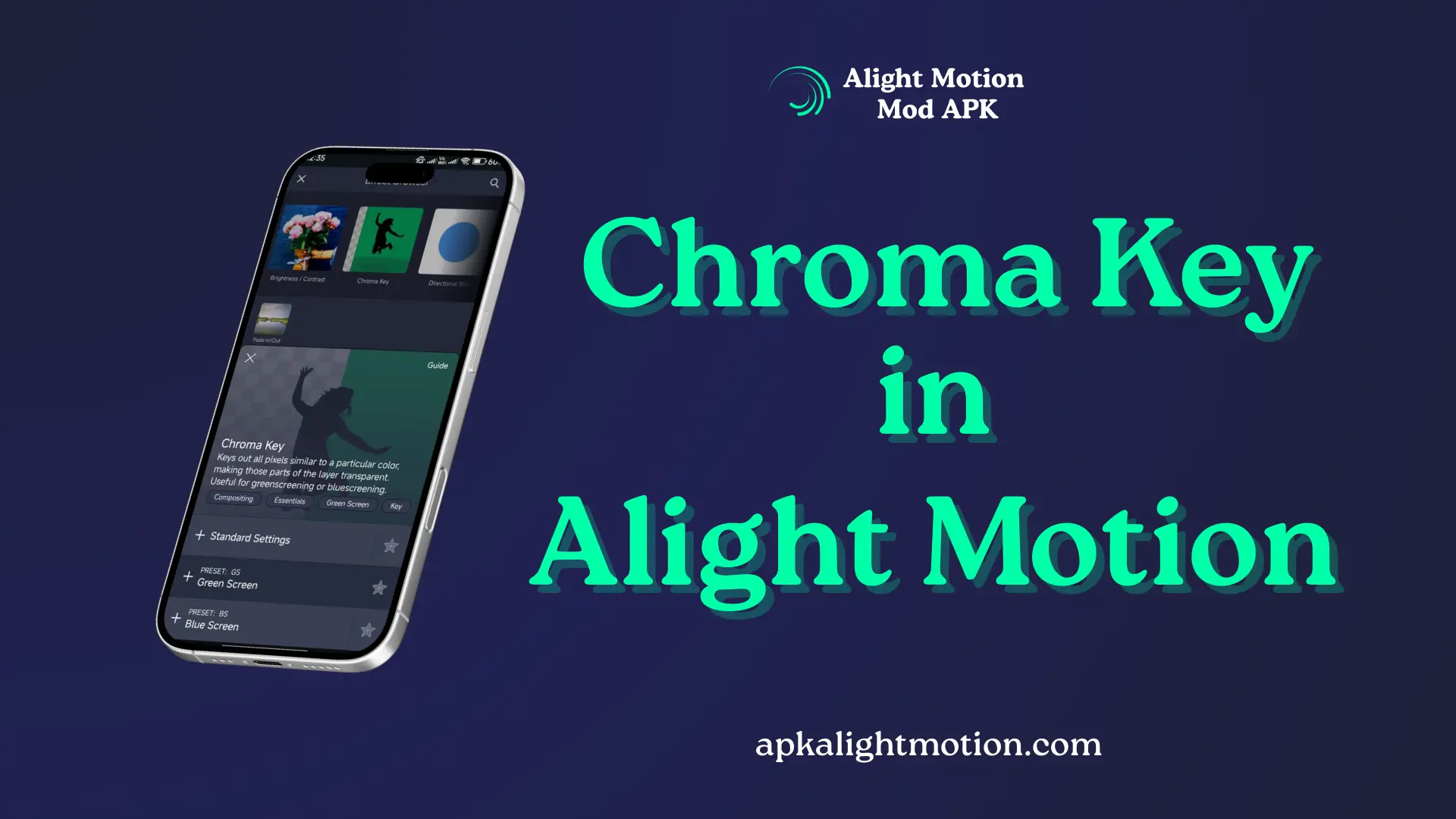
The Chroma Key feature is available as an effect. You can find it by selecting a video layer, tapping Effects, then navigating to Color & Light or Keying, depending on your version. Many users choose Alight Motion because it combines chroma keying, masking techniques, motion graphics, and audio syncing in one app.
Chroma Key is especially useful in creative projects like replacing plain walls with animated scenes, placing a person inside a game environment, adding weather effects, or making engaging social media videos for YouTube Shorts, TikTok, and Instagram Reels.
Step-by-Step Guide to Applying Chroma Key in Alight Motion
Let’s walk through the complete process in a simple, practical way.
Step 1: Import Your Green Screen Footage
Open Alight Motion and create a new project. Import your green or blue screen video as the main layer. Below it, add the background image or video you want to use. This could be a city scene, animated background, or any visual you like.
Step 2: Apply the Chroma Key Effect
Select the green screen video layer. Tap Effects, then choose Chroma Key. Use the color picker tool to select the green or blue background color. Instantly, the background will disappear, revealing the layer below.
Step 3: Adjust Color Range and Softness
This is where most beginners get confused, so keep it simple.
- Color threshold controls how much of the selected color is removed. A low value might leave green patches, while a very high value can remove parts of your subject.
- Softness smooths the transition between removed and visible areas.
As a general example, start with a medium threshold and gradually increase it until the background is clean. Then add a little softness to avoid harsh edges.
Step 4: Improve Edge Smoothness and Transparency
Use edge smoothness and feather options to make hair and outlines look natural. This step is important for professional green screen editing. If the subject looks cut out, slightly increase edge blur or feathering.
Step 5: Work with Layers and Masks
If some areas don’t key properly, add a mask. Masking techniques allow you to manually hide unwanted parts or protect areas that should remain visible. This is useful when dealing with shadows or uneven lighting.
Step 6: Enhance the Scene with Effects
Now you can add visual effects like shadows, color grading, or motion blur. For example, placing a person in a sunset background and adding warm tones makes the scene feel realistic. You can also animate positions using keyframe controls to create movement.
Common Chroma Key Problems and How to Fix Them
One common issue is uneven lighting on the green screen. Dark spots create different shades of green, making background removal difficult. To fix this, adjust color range carefully and use better lighting during recording.
Another challenge is color spill, where green reflects onto clothing or skin. Alight Motion offers color spill reduction options that help neutralize unwanted color tones.
Pixelated or jagged edges usually mean the threshold is too high. Reduce it slightly and increase softness instead. Also, keeping distance between the subject and background during recording helps reduce shadows and spill.
Tips to Make Your Chroma Key Videos Look Professional
Good chroma key results start before editing. Proper lighting for chroma key, consistent background color, and clean camera footage make editing much easier. Always avoid green clothing and reflective objects.
In Alight Motion, combining Chroma Key with keyframe animations, masking, and subtle motion effects can elevate your video. Syncing visuals with audio beats adds a polished touch, especially for social media content.
During export, choose high resolution and bitrate in video export settings to preserve edge quality. Compression can ruin smooth edges if settings are too low.
Conclusion
Chroma Key is a powerful skill that opens endless creative possibilities. From simple video background replacement to advanced mobile video visual effects, mastering this technique can transform your editing style. Alight Motion makes chroma keying accessible by offering intuitive tools, layer control, and flexible adjustments.
The key to success is practice. Experiment with different color key adjustments, refine edges, and test various backgrounds. As you improve, your post production workflow will become faster and more professional. By mastering Chroma Key in Alight Motion, you’re not just editing videos, you’re creating immersive visual experiences that truly stand out.