A Simple Beginner Guide on Alight Motion Presets
If you are new to Android video editing and want your videos to look professional without spending hours on complicated settings, Alight Motion presets can be a game changer. Presets allow you to apply ready made effects, animations, and styles in just a few taps. Instead of building everything from scratch, you can start with…
If you are new to Android video editing and want your videos to look professional without spending hours on complicated settings, Alight Motion presets can be a game changer. Presets allow you to apply ready made effects, animations, and styles in just a few taps. Instead of building everything from scratch, you can start with a preset and adjust it to fit your video. In this guide, I’ll walk you through what presets are, why they’re useful, and how to use them step by step inside the Alight Motion app.
What Are Alight Motion Presets?
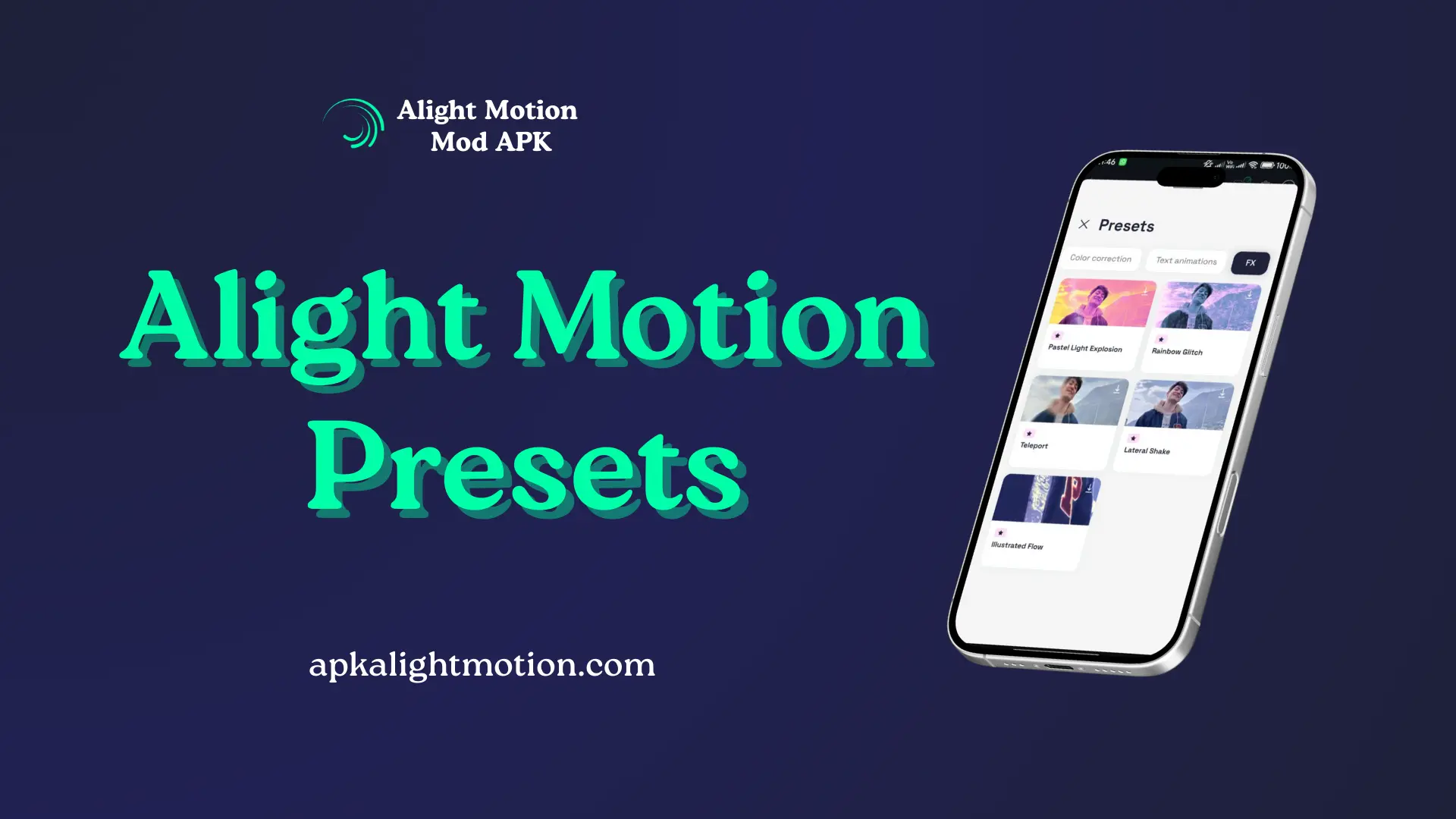
Alight Motion presets are pre-configured effects or animations that you can apply instantly to your video, text, or image layers. Think of them like photo filters on Instagram. Instead of manually adjusting brightness, contrast, and colors every time, you apply a filter and get a polished look right away.
In the same way, presets in Alight Motion already contain saved settings such as motion, scale, rotation, opacity, or visual effects. They can work on text, shapes, images, or video layers. This helps beginners get consistent results while learning motion graphics editing without feeling overwhelmed.
Why Use Presets?
Presets are especially helpful if you are just starting out. They solve many common beginner problems in a simple way. First, they save a lot of time. Instead of adding keyframes and effects one by one, you can apply a preset and see instant results. Second, they help you avoid repetitive work. If you edit social videos regularly, presets keep your style consistent.
Third, they allow you to create professional looking effects even if you do not fully understand advanced editing yet. Finally, presets make editing more fun and creative because you can experiment quickly and learn by observing how effects are built. For example, if you are making Instagram stories or short YouTube clips, presets help you finish edits faster while still looking polished.
Step-by-Step Guide to Using Alight Motion Presets
Let’s go through the process in a simple, beginner-friendly way. Below is the complete guide that how can you use the presets in Alight Motion
Open the Alight Motion App
Start by opening the Alight Motion app on your Android device. Make sure it’s updated so all features work smoothly.
Create or Open a Project
Tap the plus (+) icon to create a new project, or open an existing one. Choose your resolution and frame rate based on where you’ll post the video.
Import Your Media
Add your video clips, images, or text layers. Each item you add appears as a separate layer on the timeline. Presets are applied to these layers.
Find the Presets Library
Select the layer you want to edit. Look for preset or effect options in the menu. Some presets may come built-in, while others can be imported or saved from previous projects.
Choose a Preset Category
Presets are usually grouped by type, such as animation presets, text effects, motion presets, or color styles. Pick one that matches your goal.
Apply the Preset to a Layer
Tap on the preset you like. It will instantly apply to the selected layer. You’ll see the effect directly in the preview window.
Customize the Preset
Most presets can be adjusted. You can change duration, intensity, colors, or scale. This is where you make the preset feel unique instead of generic.
Use Keyframes if Needed
Some presets include built-in keyframes. You can move or adjust them on the timeline to control timing and motion more precisely.
Preview and Adjust Timing
Play the preview to check how the effect looks. Small timing adjustments can make a big difference.
Export the Final Video
Once satisfied, export your video using the appropriate quality settings for your platform.
Examples of Preset Use Cases
Presets can be used in many practical ways, even for beginners.
- You can use text animation presets to create eye-catching titles without manual animation.
- Transition presets help you move smoothly between clips.
- Color grading presets instantly change the mood of your video, making it warm, dark, or cinematic.
- Lower third presets are useful for branding or adding names. Some creators also use glitch or cinematic presets to add style to music or reel videos.
Pro Tips for Using Presets Like a Pro
Presets work best when you do not rely on them blindly. Always tweak them slightly to fit your video. Combine presets with simple custom keyframes to add personal touch. Rename layers after applying presets so your timeline stays organized. Save your favorite custom effects as presets to reuse later. Also, adjust timing based on platform such as fast pacing for TikTok and smoother pacing for YouTube. These small habits improve your creative workflow and editing confidence.
Common Mistakes Beginners Make
Many beginners apply too many presets at once, making videos look messy. Others forget to adjust duration, so animations feel rushed or slow. Ignoring timeline preview often leads to timing issues. Layer order mistakes can hide effects. Skipping export quality settings may reduce final video quality. All of these are normal mistakes, and you’ll improve with practice.
How to Create Your Own Presets
Once you are comfortable, you can create your own presets. Design an effect you like using motion, opacity, or visual effects. Save it as a preset inside the app. Later, you can apply it to any project. This saves time and helps you build a consistent editing style over the long term.
Conclusion
Alight Motion presets make Android video editing easier, faster, and more enjoyable. They help beginners create professional-looking motion graphics without advanced knowledge. With regular practice and small adjustments, presets become powerful tools in your editing journey. Keep experimenting, preview your work, and gradually learn related skills like keyframes or velocity editing. Every project you complete will build your confidence and creativity.
If you enjoy using presets to speed up your edits, you may also find ready-made designs helpful. Alight Motion templates are perfect for beginners who want instant layouts, animations, and styles without building everything from scratch. These templates work well alongside presets and can further simplify your editing process. You can explore a complete guide on using and customizing templates in Alight Motion to improve your creative workflow even more.