Why Alight Motion is Laggy: Simple Reasons and Easy Fixes
If you are searching for why Alight Motion is laggy, you are definitely not alone. Many beginners notice slow previews, delayed responses, or freezing timelines while editing videos. Alight Motion is a powerful mobile video editing app, but its performance depends on your device, storage, and editing settings. In this article, we will explain the…
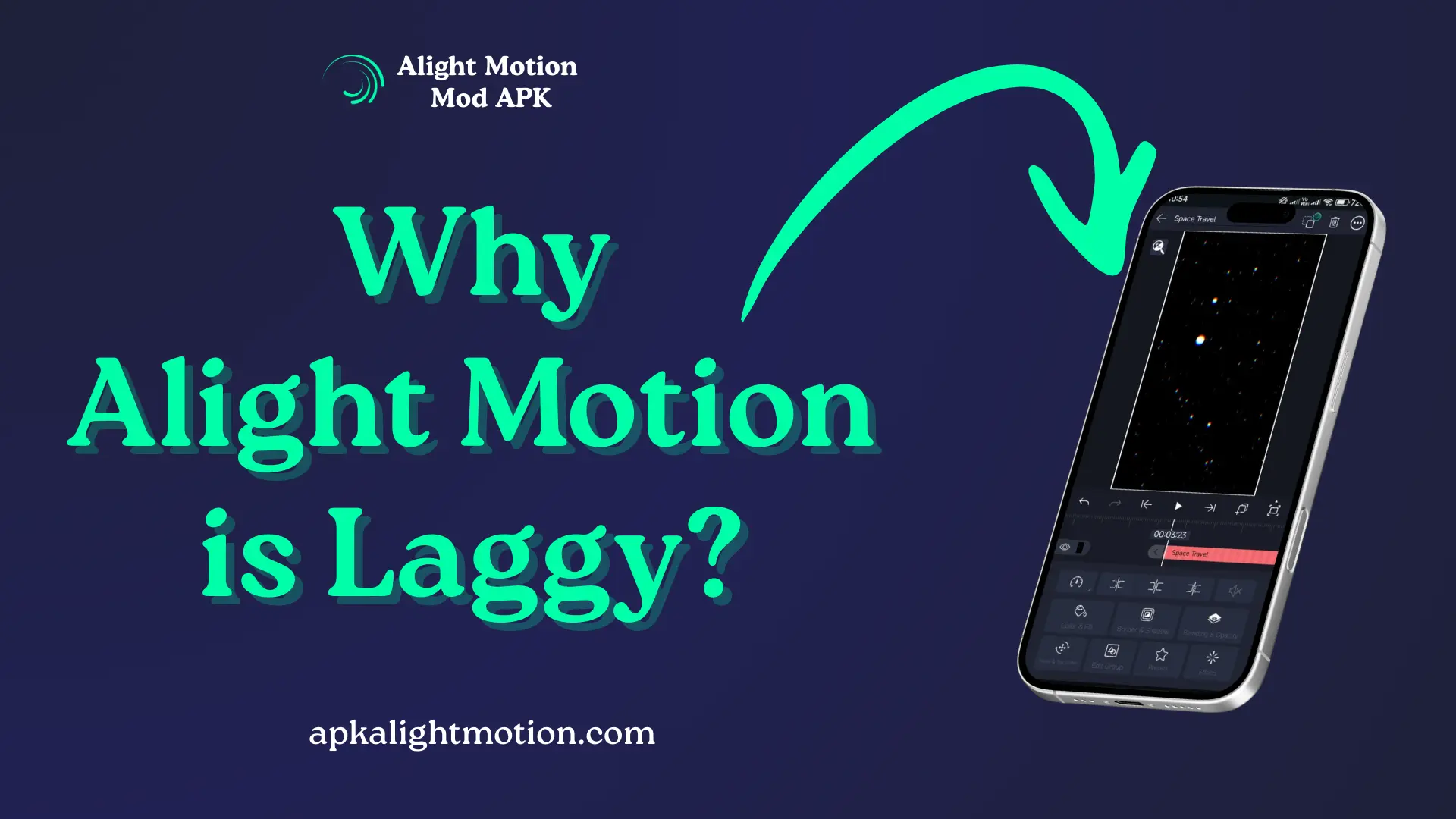
If you are searching for why Alight Motion is laggy, you are definitely not alone. Many beginners notice slow previews, delayed responses, or freezing timelines while editing videos. Alight Motion is a powerful mobile video editing app, but its performance depends on your device, storage, and editing settings. In this article, we will explain the real reasons behind lag and share simple, practical solutions to help you edit smoothly without frustration.
What Makes Alight Motion Lag During Editing?
Alight Motion performs complex tasks like motion graphics, keyframe animations, and layered effects directly on your phone. When your device cannot keep up with these tasks, the app starts lagging. This usually happens because of limited device RAM, heavy effects & layers, high preview resolution, or poor system optimization. Understanding these factors helps you avoid lag before it becomes a problem.
Low Device RAM and Hardware Limitations
One of the most common reasons behind laggy performance is weak hardware. Mobile video editing requires strong processing power, and not all devices are built for heavy editing tasks. Phones with lower RAM or older processors often struggle when handling animations, effects, and long timelines at the same time.
How Device RAM Affects Mobile Video Editing
RAM plays a critical role in how smoothly Alight Motion runs. It stores temporary data while the app is active, allowing smooth previews and fast responses. When RAM is low, the app constantly reloads data, causing stutters and delays. This is why editing feels slow on budget devices with limited memory.
Too Many Effects & Layers
Alight Motion allows users to stack multiple layers and apply advanced effects, which is great for creativity but tough on performance. Each added layer increases the workload on your phone. When too many layers are active at once, the app needs more time to process every frame.
Why Heavy Effects Cause Lag in Alight Motion
Effects like blur, glow, shadow, and color grading are resource-intensive. When applied to multiple layers, they must be rendered in real time during previews. This heavy processing causes timeline lag, delayed playback, and occasional freezing, especially on mid-range or older devices.
High Preview Resolution and Frame Rate Issues
Preview settings greatly impact editing smoothness. Many users unknowingly edit at high preview resolution and high frame rates, which makes the app work harder than necessary. While high quality looks good, it’s not required during the editing stage.
Best Preview Settings for Smooth Editing
Lowering preview resolution reduces the number of pixels your phone needs to process. Similarly, using a lower frame rate such as 30fps instead of 60fps cuts the workload in half. These adjustments make previews smoother without affecting final export quality.
Cache Storage and Full Internal Memory Problems
As you edit more projects, Alight Motion stores temporary files in cache storage. Over time, these files pile up and reduce available space. When internal storage is almost full, the app has less room to operate efficiently, which results in lag and slow responses.
How Clearing Cache Improves App Performance
Clearing cache removes unnecessary temporary files that slow down the app. This frees up space and allows Alight Motion to load projects faster. Regular cache cleaning also prevents crashes and improves overall app stability, especially on devices with limited storage.
Background Apps Reduce Editing Speed
Many users forget that background apps continue running even when not in use. These apps consume RAM and processing power, which directly affects Alight Motion’s performance during editing sessions.
Why Closing Other Apps Helps Alight Motion Run Faster
Closing unused apps frees up memory and CPU resources. When Alight Motion has full access to your device’s hardware, previews play smoother, effects render faster, and the app becomes more responsive. This simple habit can significantly reduce lag.
Outdated App or Android / iOS Version
Running an outdated version of Alight Motion or your device’s operating system can cause performance issues. Older versions may contain bugs or compatibility problems that affect smooth editing.
Why Updates Matter for Performance and Stability
App updates often include bug fixes, performance improvements, and better optimization for Android / iOS devices. Keeping everything updated ensures better app performance, fewer crashes, and improved compatibility with newer devices.
Why Alight Motion Lags While Exporting Videos?
Exporting is the most demanding stage of the editing process. During export, Alight Motion combines all layers, effects, transitions, resolution, and frame rate into one final file. This puts maximum stress on your device.
Export lag is normal, especially on devices with limited RAM or older processors. Higher export quality naturally takes more time, so patience is important during this step.
How to Fix Alight Motion Lag
To reduce lag quickly, start by lowering preview resolution and frame rate while editing. Avoid using too many heavy effects at once and keep layers organized. Close background apps, clear cache storage, and free up internal memory regularly. Updating the app and system also helps improve overall performance.
Conclusion
Alight Motion lag is usually not a bug but a sign that your device is overloaded. Once you understand why Alight Motion is laggy, you can control it by managing effects, storage, and preview settings wisely. With the right approach and realistic expectations, even beginners can enjoy smooth and efficient mobile video editing on both Android and iOS.
If you are facing frequent crashes, app freezes, or unexpected issues while editing, lag may not be the only problem. In some cases, errors and system conflicts can also affect overall app performance. To understand these issues better and learn how to fix common problems step by step, you can check our detailed guide on Alight Motion errors, where we explain why errors occur and how to solve them for a smoother editing experience.