Alight Motion Templates: A Complete Beginner-Friendly Guide
If you are new to the Alight Motion app and want to design eye catching social media videos, templates can save you hours of work while helping you understand how motion graphics actually function. Alight Motion Templates are one of the easiest ways for beginners to create professional looking videos without feeling overwhelmed by complex…
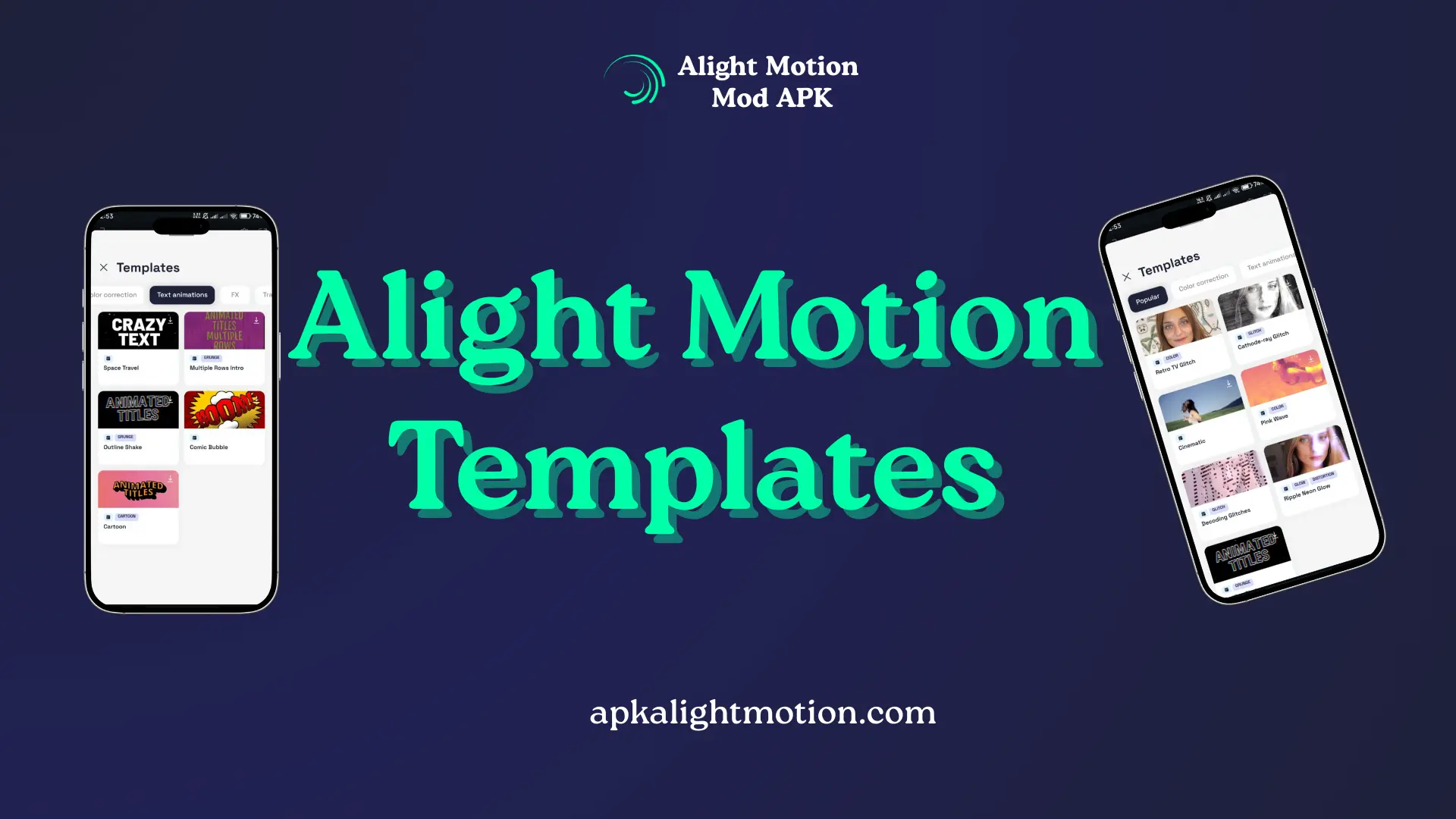
If you are new to the Alight Motion app and want to design eye catching social media videos, templates can save you hours of work while helping you understand how motion graphics actually function. Alight Motion Templates are one of the easiest ways for beginners to create professional looking videos without feeling overwhelmed by complex editing tools. These templates are pre-designed video projects that already include animations, effects, transitions, typography, and layered elements, allowing you to focus more on creativity instead of starting from a blank screen.
When mobile creators open Alight Motion for the first time, the interface may feel confusing. There are layers, keyframes, overlays, and multiple editing panels. Templates simplify this learning curve. They act like a ready made structure where everything is already arranged. You only need to replace text, images, or video clips and adjust a few settings to match your style.
What Are Alight Motion Templates and How Do They Work
Alight Motion Templates are usually shared as XML templates. An XML template is a project file that contains all the information about animations, effects, transitions, and layers used in a video. When you import this XML file into the Alight Motion app, it opens as a fully editable project. This means you can see every layer, animation, and effect used by the creator.
Templates work by combining keyframes with motion graphics elements. Keyframes control how objects move, scale, rotate, or fade over time. Effects and presets are already applied to layers, giving smooth animations and professional visual effects. For beginners, this is extremely helpful because you can visually understand how animations are built by simply exploring the template timeline.
Why Content Creators Use Alight Motion Templates
Content creators rely on Alight Motion Templates because they save time and maintain consistency. When creating TikTok videos, Instagram Reels, or YouTube Shorts, speed matters. Templates allow creators to produce multiple videos quickly without rebuilding animations from scratch every time. This is especially useful for social media videos where trends change fast and posting regularly is important.
Another reason creators love templates is quality. Even if you are not an expert in motion graphics, templates give your videos a polished and professional look. Smooth transitions, synced text animations, and stylish typography make your content stand out. For Android editing users, Alight Motion is one of the most powerful mobile video editor options, and templates unlock its full potential.
How Beginners Can Start Using Alight Motion Templates
If you are new to the Alight Motion app, templates are the best starting point. Once you import a template, take a moment to explore the project. Look at the layers panel and notice how text, shapes, and overlays are organized. Play the timeline and observe how animations flow from one scene to another.
Start with small edits. Change the text content to your own message. Replace images or video clips while keeping the original animations intact. This helps you understand how templates are structured without breaking the design. Over time, you will gain confidence to modify effects, transitions, and animations.
Importing XML Templates into the Alight Motion App
Importing XML templates is simple but requires attention. After downloading the XML file to your Android device, open the Alight Motion app and create a new project. Use the import option to select the XML file from your storage. Once imported, the template will appear as a full project with all elements ready to edit.
It is important to ensure your app version supports the template. Some templates use advanced effects or newer presets that may not work on older versions of the app. Keeping Alight Motion updated helps avoid compatibility issues and ensures smoother editing.
Customizing Effects, Text, and Colors
Customization is where templates truly become your own creation. Start by editing text layers. Tap on the text layer and update the wording, font style, and alignment. Typography plays a huge role in video quality, so choose fonts that match your content theme.
Next, adjust colors to suit your brand or mood. Many templates use color presets that can be easily changed. By modifying color values, you can transform the entire look of a video without altering animations. Effects like blur, glow, and shadows can also be fine tuned to achieve a more subtle or dramatic appearance.
Animations can be adjusted by editing keyframes. You do not need advanced knowledge to do this. Simply move keyframes slightly to slow down or speed up motion. This allows you to match animations with music beats or voiceovers, which is especially useful for TikTok videos and Instagram Reels.
Using Alight Motion Templates for Different Platforms
Different platforms require different video styles. Alight Motion Templates can be adapted for TikTok videos, Instagram Reels, and YouTube Shorts by adjusting aspect ratios and timing. Vertical videos work best for short form content, while square or horizontal formats may be better for other platforms.
When editing for social media videos, pay attention to safe areas. Text should remain visible and not be covered by app interface elements like captions or buttons. Templates often account for this, but it is always good to preview your video before exporting.
Common Beginner Mistakes to Avoid
One common mistake beginners make is over editing templates. Adding too many effects or animations can make a video look messy. Templates are designed with balance in mind, so minimal adjustments often produce the best results.
Another mistake is not understanding layer order. If you accidentally move or delete a layer, the animation may break. Always duplicate the project before making major changes. This gives you a backup in case something goes wrong.
Beginners also sometimes ignore export settings. Choosing the right resolution and frame rate is important for video quality. Using the recommended settings for each platform ensures your final video looks sharp and smooth.
Creative Tips to Make Templates Look Unique
To make Alight Motion Templates feel original, focus on storytelling. Change the sequence of scenes to better match your message. Add personal footage or voiceovers to connect with your audience. Small changes like adjusting animation timing or adding subtle overlays can completely transform a template.
Experiment with blending modes and opacity to create depth. This technique is often overlooked but can enhance visual effects significantly. Learning these small details will help you move from using templates to creating your own motion graphics projects.
How Templates Improve Learning and Video Quality
Templates are not just shortcuts. They are learning tools. By studying how animations, effects, and transitions are built, you gradually understand the logic behind motion graphics. Over time, you will feel comfortable creating projects from scratch.
For beginners, templates improve video quality instantly. They reduce frustration and build confidence. Instead of struggling with technical settings, you can focus on content creation and consistency. This is why Alight Motion Templates are widely used by mobile creators and social media enthusiasts.
Conclusion
Alight Motion Templates are a powerful resource for anyone interested in mobile video editing. They combine professional motion graphics with beginner friendly usability. Whether you are creating content for TikTok, Instagram, or YouTube, templates help you produce visually appealing videos faster and with less effort.
As you continue using templates, treat them as stepping stones. Explore their structure, experiment with customization, and learn from each project. With time and practice, you will not only use templates confidently but also develop the skills to design your own animations and visual effects inside the Alight Motion app.